Git and GitHub for Complete Beginners: Your First Project
Git and GitHub are often mentioned in the same sentence, which makes them sound like one thing. They are not.
- Git runs on your computer. It records the history of a project.
- GitHub is an online service that can host a Git repository and help people work on it together.
Think of Git as the history inside a notebook. GitHub is a secure place to keep a copy of that notebook and share it with a team.
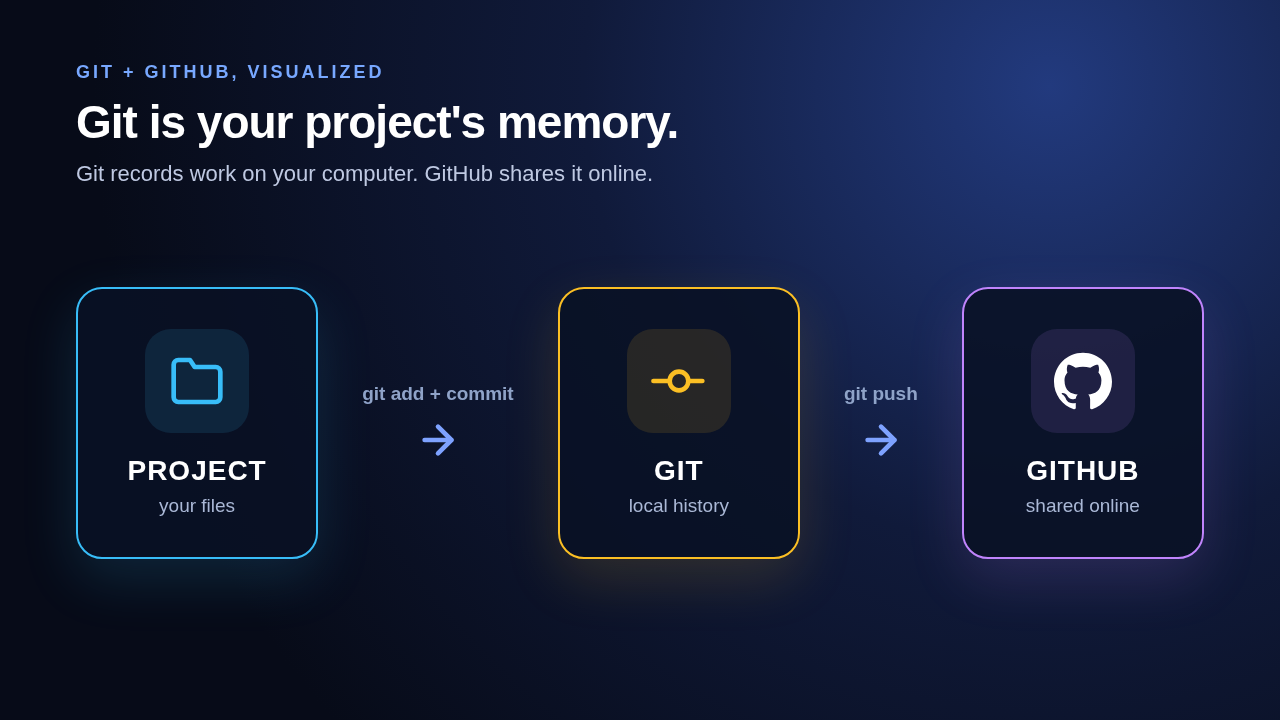
This first article gives you a complete loop: make a folder, record a change with Git, and publish it to GitHub.
What you need
- Git installed. Check with
git --version. - A free GitHub account.
- A terminal. Use Terminal on macOS/Linux. On Windows, use Git Bash — it comes with Git and runs every command in this article. PowerShell and CMD lack some of the commands shown here.
Before committing for the first time, tell Git the name and email to place on your commits. Use the email you want associated with your GitHub account if you want GitHub to connect those commits to your profile.
1git config --global user.name "Your Name"
2git config --global user.email "you@example.com"
3Make a tiny project
Create a folder and a file. The example uses a simple text file so you can focus on Git rather than a programming language.
1mkdir hello-git
2cd hello-git
3printf "# Hello Git\n" > README.md
4Now initialize Git in this folder:
1git init
2git init creates a hidden .git directory. That directory contains Git's database and history. Do not delete it unless you deliberately want this folder to stop being a Git repository.
Check the current state:
1git status
2Git reports README.md as an untracked file. Git sees the file, but it is not part of a saved snapshot yet.
The three places your work can be
Most early Git confusion disappears once you know these three places:
- Working directory: the files you edit.
- Staging area: the exact changes selected for the next commit.
- Repository history: committed snapshots.
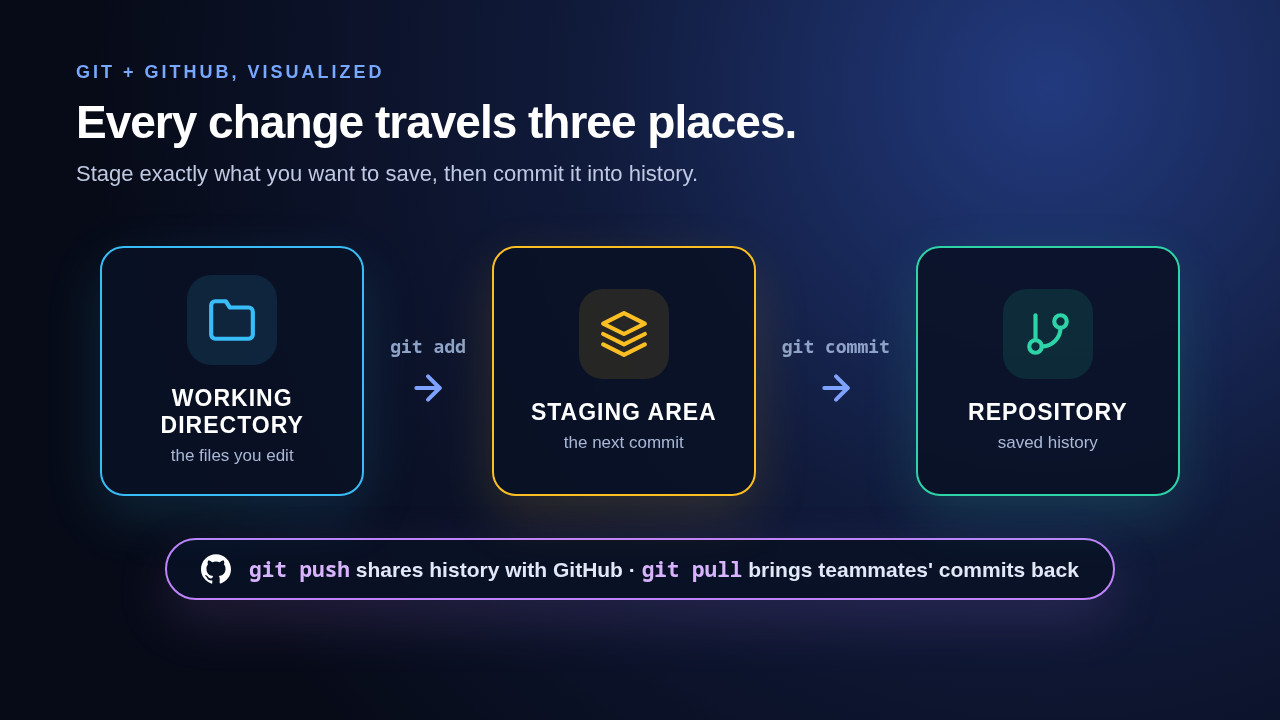
Use git add to move a change from your working directory to the staging area. Use git commit to turn what is staged into a snapshot.
1git add README.md
2git commit -m "Add project readme"
3The message explains what this snapshot changes. Write a short description that will still make sense when you see it months later.
Run these commands after the commit:
1git status
2git log --oneline
3git status should say that there is nothing to commit. git log --oneline shows your new commit.
Publish the repository on GitHub
On GitHub, create a new repository named hello-git. Because you already have a local README.md, create the GitHub repository without adding a README, .gitignore, or license. That leaves the remote repository empty and avoids an unnecessary first merge.
GitHub will show a repository URL. Copy the HTTPS URL, then connect your local repository to it. Replace the placeholder with your own URL.
1git branch -M main
2git remote add origin https://github.com/<your-username>/hello-git.git
3git push -u origin main
4origin is a conventional name for the remote repository. The -u option remembers that main should push to and pull from origin/main, so later you can use the shorter command git push.
Refresh the GitHub repository page. Your README.md and its commit should be there.
The first push asks you to sign in
If this was really your first push, Git asked for a username and a password before uploading anything. That pause is normal. Two facts make it painless:
- GitHub stopped accepting your account password for Git operations in August 2021.
- Windows and macOS install the Git Credential Manager with Git. It opens a browser window asking you to authorize GitHub, then remembers the sign-in. Approve it once and later pushes happen silently.
- On Linux without a credential manager, the terminal password prompt expects a Personal Access Token (PAT), which you create at github.com/settings/tokens. Give it access to the repositories you want to push to, paste it at the password prompt, and Git remembers it.
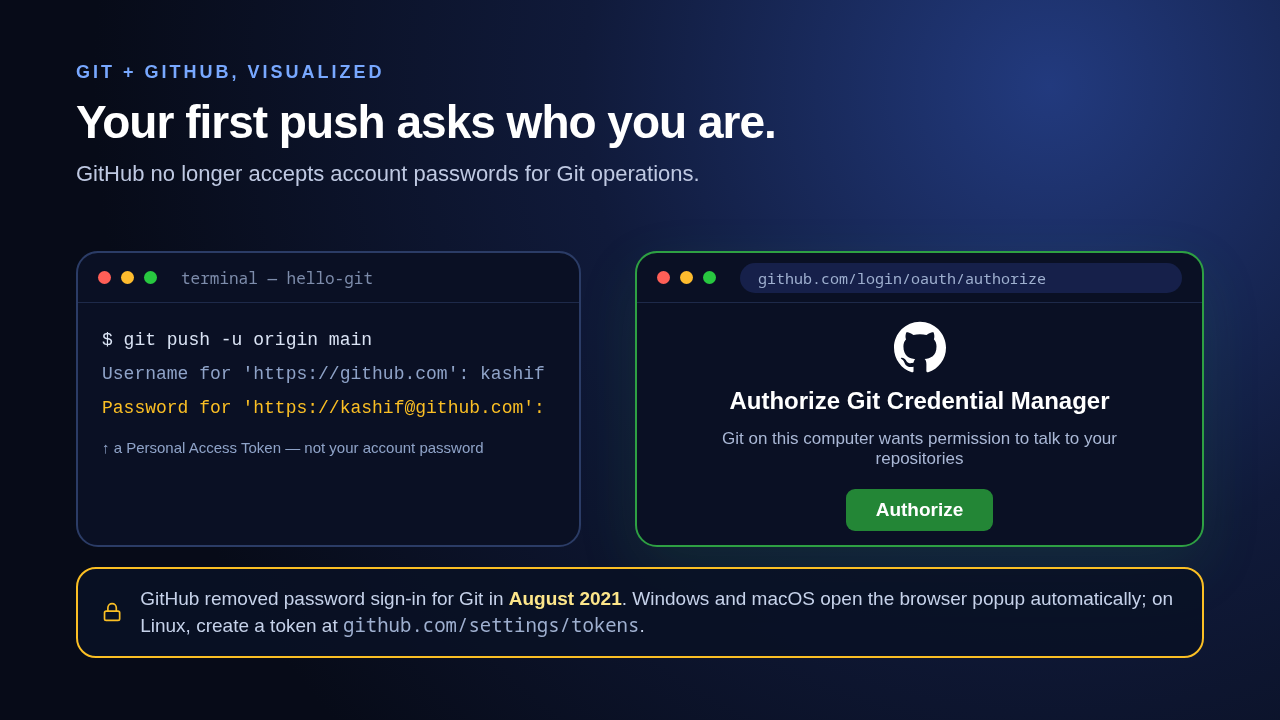
If you are unsure whether you are signed in already, just run git push. Either it succeeds quietly or the sign-in appears.
Your everyday solo workflow
When you change a file, repeat this small loop:
1git status
2git add README.md
3git commit -m "Describe the change"
4git push
5Do not run git add . blindly while learning. Naming the files makes you pause and review what will go into the commit. When you are comfortable, git add . is useful for staging all changes under the current directory, but git status remains your safety check.
A quick practice round
Add one more line to the README, then save and publish it:
1printf "\nMy first Git repository.\n" >> README.md
2git diff
3git add README.md
4git commit -m "Describe the project"
5git push
6git diff shows unstaged changes. Read it before git add when a change matters. Git stores what you stage, not necessarily every edit in the folder.
Common beginner questions
Does Git need the internet?
No. Commits, history, branches, and diffs work locally. You need the internet only when communicating with a remote service such as GitHub.
Is GitHub the only place for Git repositories?
No. GitHub is one hosting service. GitLab, Bitbucket, and a server you manage can also host Git repositories. The local Git commands are the same idea regardless of the host.
What if I made a mistake before committing?
Edit the file again. Nothing is permanent until you commit it. If you staged a file too early, use git restore --staged README.md, review the file, then stage it again.
Is creating a repository by hand the only way?
No. When a repository already exists on GitHub — yours or a teammate's — use git clone:
1git clone https://github.com/<your-username>/hello-git.git
2That downloads the project and connects it to GitHub in one step. git init plus git remote add is for starting from a local folder that GitHub has never seen.
What about files I never want to commit?
Create a file named .gitignore in the project root and list names or patterns in it, one per line:
1.env
2node_modules/
3*.log
4Git skips matching files when you run git add. Teams keep .gitignore itself committed so everyone ignores the same things.
What you learned
You created a local Git repository, selected a file for a commit, recorded history, connected the repository to GitHub, and pushed it online. In the next article, you will use branches and pull requests so changes can be reviewed before they reach main.